How to Set Up Two-Factor Authentication Seamlessly
A strong, unique password is a good start, but it’s not enough on its own — if a company you use ever suffers a data breach, your password could end up in the hands of someone who’s never met you. Two-factor authentication is the single most effective, low-effort security measure most people still haven’t turned on. Here’s what it actually does and how to set it up on the accounts that matter most.
What Two-Factor Authentication Actually Does
Two-factor authentication (2FA) requires a second piece of proof beyond your password before letting you log in — typically something you have (your phone) rather than just something you know (your password). Even if someone steals or guesses your password, they’d also need access to your second factor to actually get into your account, which stops the overwhelming majority of automated account takeover attempts in their tracks.
The Main Types of 2FA, Ranked by Security
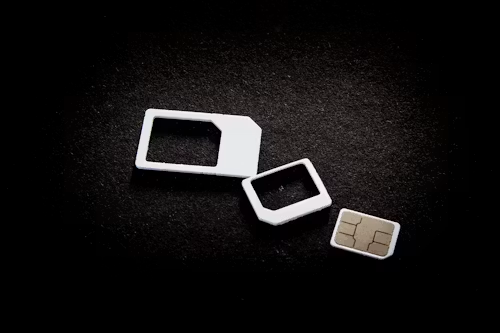
SMS text message codes — a code sent to your phone via text. This is better than no 2FA at all, but it’s the weakest common option, since it’s vulnerable to SIM-swapping attacks, where a scammer convinces your carrier to transfer your phone number to a device they control. Still, if it’s the only option a service offers, use it rather than skipping 2FA entirely.
Authenticator apps (Google Authenticator, Microsoft Authenticator, Authy) — these generate a new numeric code every 30 seconds directly on your device, without relying on your cell carrier at all. This closes the SIM-swapping vulnerability that SMS codes carry and is widely considered the sensible default for most people and most accounts.
Push notifications — some services (banking apps, Microsoft, Google) send an “Approve this login?” prompt directly to your phone rather than a code to type in. Genuinely convenient and similarly secure to an authenticator app, though it’s occasionally been exploited when people reflexively approve a prompt without checking whether they actually just tried to log in themselves — a habit worth being deliberate about.
Hardware security keys (YubiKey and similar) — a small physical device you plug in or tap to confirm a login. This is the strongest form of 2FA available, since it’s not vulnerable to remote phishing the way a code you type in can be. It’s mostly relevant for people managing especially sensitive accounts or with elevated personal risk, rather than a necessity for casual everyday use.
How to Set Up 2FA on the Accounts That Matter Most
Start with the accounts that would cause the most damage if compromised, roughly in this order:
- Your email account — this is the most important one by far, since email is frequently used to reset passwords on every other account you own. If your email gets compromised, an attacker can often cascade into your other accounts from there.
- Your password manager, if you use one — this protects everything stored inside it.
- Banking and financial apps — most already offer or require 2FA; make sure it’s genuinely turned on, not just available.
- Social media accounts — a compromised account is commonly used to scam your friends and contacts, not just you.
- Any account tied to your phone number or carrier—protecting these reduces your exposure to SIM-swapping specifically.
For most services, the setting lives under Settings → Security or Settings → Login & Security, typically labelled “Two-Factor Authentication”, “2-Step Verification”, or “Multi-Factor Authentication” (these are all the same concept under different names).
What to Do If You Lose Access to Your Second Factor
Before you finish setting up 2FA on an important account, save the backup codes most services generate during setup — these are one-time-use codes that let you back into your account if you lose your phone or authenticator app. Store them somewhere secure but accessible (a password manager’s secure notes feature is a good spot), since losing both your second factor and your backup codes at the same time can genuinely lock you out of your own account.
Common Concerns, Addressed
“Isn’t this just an extra annoying step every time I log in?” Most services only ask for your second factor occasionally — when logging in from a new device or after a period of inactivity — rather than every single time, so the day-to-day inconvenience is smaller than people often expect.
“What if I don’t have my phone with me?” This is exactly what backup codes and, on many services, alternate verification methods (a secondary email, a backup authenticator device) are for — worth setting one of these up during initial 2FA setup rather than discovering the gap later.
Bottom Line
Two-factor authentication is one of the few security measures that dramatically reduces your actual risk for a fairly small amount of setup effort. Prioritise an authenticator app over SMS where it’s offered, start with your email and password manager, and save your backup codes somewhere secure before you need them. If you haven’t set this up on your most important accounts yet, it’s worth doing today rather than after something goes wrong.