iPhone Tips and Tricks Worth Knowing: The Essential iOS 26 Guide
Most people use a small fraction of what their iPhone can actually do. iOS 26 quietly added a long list of genuinely useful features that never got a big keynote moment, tucked away in Settings or buried a menu or two deep. Here are the ones actually worth learning, organised by how much they’ll change your day-to-day use.
Customise Your Alarm Snooze Length
For as long as the iPhone has existed, snoozing an alarm meant a fixed 9-minute delay — a holdover from an old mechanical alarm clock design that never made much sense on a digital device. iOS 26 finally lets you set your own snooze duration, anywhere from 1 to 15 minutes, directly in the Clock app. If you’ve ever snoozed twice because 9 minutes wasn’t quite enough, or once because it was too much, this is a small change that fixes a genuinely annoying default.
Turn On Adaptive Power Mode
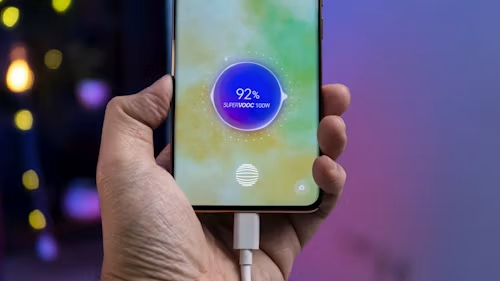
This is one of the most consistently praised iPhone tips from this iOS cycle, and it’s easy to miss because it doesn’t announce itself. Go to Settings → Battery → Power Mode and turn on Adaptive Power. Unlike Low Power Mode, which you have to manually trigger, Adaptive Power uses on-device AI to learn your usage patterns and make subtle adjustments — slightly dimming the screen, easing background activity — on the days it predicts you’ll need it. It’s designed to be unnoticeable while quietly extending your battery life, and it will automatically hand off to Low Power Mode if you hit 20% anyway. Note this feature requires an iPhone 15 Pro or later.
Set a Callback Reminder From a Missed Call
If you miss a call and don’t have time to deal with it right away, swipe left on the missed call in your Phone app and tap the blue clock icon that appears. It drops you straight into Reminders with a callback reminder already filled in with that person’s name — a small shortcut that saves you from either forgetting to call back or manually creating a reminder from scratch.
Turn Off Auto-Saving Messages and Photos to Your Camera Roll
If you’ve ever quickly snapped a photo inside a text conversation — a product in a store, a page in a book — and later found your camera roll cluttered with throwaway images, there’s a fix. Go to Settings → Camera, scroll to the bottom, and toggle off. Save Captures to Photo Library. Photos you take from within Messages will still send normally; they just won’t automatically clutter your actual photo library anymore.
Turn Any App Icon Into a Widget
Long-press almost any app icon on your Home Screen, and you’ll see resizable widget options appear at the top of the menu — this works with virtually any Apple app and most third-party apps that support widgets. Select a size to instantly convert that icon into a live widget. Long-press again and tap the small four-square icon in the top left to switch it back to a standard icon whenever you want.
Use Visual Intelligence to Search What’s On Your Screen
Visual Intelligence, one of iOS 26’s more useful additions, lets you point your camera — or now, use a screenshot — at something and get contextual information about it, similar to visual search tools you may have used on the web. It’s genuinely useful for identifying a plant, looking up a product, or pulling text out of a photo, all without switching apps or typing anything.
Check Your Location History in Maps
The Maps app quietly keeps a history of places you’ve visited, which is worth knowing about the next time you’re trying to remember where you ate on a trip a few months back or the name of a shop you passed once and meant to go back to. It’s a small feature, but a genuinely useful one for anyone who doesn’t consistently save every place they visit in the moment.
Customise Your Action Button
If your iPhone has an action button, don’t leave it on the default mute toggle unless that’s genuinely the most useful function for you. In Settings → Action Button, you can assign it to instantly launch the camera, trigger a specific shortcut, control a smart home device, start voice search in Messages, or do several other options. Since this button is available with a single press regardless of what’s on your screen, it’s worth setting to whatever task you do most often throughout the day.
Set Alarms Directly From Reminders
Beyond a standard notification, you can attach an actual alarm to a reminder, which forces a pop-up you have to actively dismiss or snooze rather than a notification you can swipe away without a second thought. This is a small but genuinely useful trick for anything you truly can’t afford to miss.
Manage Screenshot Behaviour
iOS 26 changed how screenshots are previewed and handled by default, but you can revert to the classic thumbnail preview in Settings → General if you preferred the older, quicker workflow for editing and sharing screenshots right after capturing them. If you use CarPlay, you can also disable screenshots being captured automatically while driving, which some users found were being taken unintentionally.
Hide an Entire Home Screen Page
You don’t have to delete apps you rarely use just to declutter your home screen. Touch and hold your home screen background, tap the dots at the bottom of the display, and you can hide entire pages from view. Hidden apps stay fully installed and remain searchable through Spotlight — they simply won’t clutter the Home Screen pages you actually look at.
A Few More Worth Knowing
- NameDrop: hold two iPhones close together to instantly share contact details; no app-switching required.
- Live Translation: real-time translated conversations, now built more deeply into Messages and Phone in iOS 26 — genuinely useful for international travel.
- Polls in Messages: create a quick poll directly inside a group chat rather than resorting to a separate app for something as simple as picking a restaurant.
Bottom Line
None of these features individually will transform how you use your iPhone, but together they eliminate a lot of small, recurring friction — a snooze length that finally matches how you actually wake up, a battery mode that manages itself, and screenshots and messages that stop cluttering your camera roll. Most of these take under a minute to set up once and keep paying off every day after. If you’re due for a hardware upgrade rather than a software deep-dive, check out our complete iPhone 17 series guide for what’s changed on the hardware side this year.