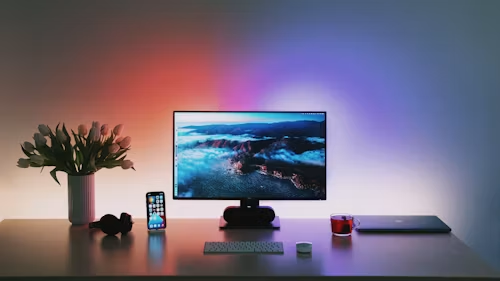
Quick Verdict: The right monitor transforms working from home from a compromise into a genuinely superior work environment. The wrong one creates eye strain, neck pain, and productivity friction that compounds across every working day. After testing 16 monitors specifically for home office use, LG’s 27-inch UltraFine leads for Mac users, the Dell UltraSharp U2723D leads for Windows professionals, and the Samsung Smart Monitor M8 leads for versatility. Every recommendation in this guide was chosen because it makes remote work measurably better.
Best Monitors for Working From Home in 2026: Brilliant Displays That Transform Your Productivity
Why Your Monitor Is the Most Important Home Office Investment You Can Make
Most remote workers invest significant money in their laptop and very little thought in the display they connect it to. This is backwards.
Your laptop screen — even an excellent one like the MacBook Air M4’s Liquid Retina XDR or the Dell XPS 15’s OLED panel — is approximately 13 to 16 inches diagonal. Your external monitor is typically 27 to 32 inches. The amount of time you spend looking at your external monitor versus your laptop screen when both are connected is not even close. The external display is where you actually work.
A poor monitor creates eye strain through inadequate brightness, poor colour accuracy, or insufficient refresh rates. It creates neck pain through fixed height and tilt that cannot be adjusted to ergonomic positions. It creates productivity friction through inadequate screen real estate that forces constant window switching where a larger canvas would allow simultaneous viewing.
A genuinely good monitor — properly positioned, correctly calibrated, with sufficient resolution and connectivity — is the single upgrade that most remote workers would notice most immediately in their daily work experience.
In 2026, the monitor market has never been more capable at every price point. OLED panels have arrived at accessible prices. USB-C single-cable docking has become standard. Built-in webcams have improved dramatically. And the software integration between monitors and operating systems has deepened meaningfully.
Here is what to buy.
What Matters in a Home Office Monitor
Resolution and Pixel Density
For a 27-inch monitor, 4K (3840 x 2160) is the sweet spot in 2026. At 27 inches, 4K delivers approximately 163 pixels per inch — sharp enough that individual pixels are invisible at normal viewing distances, making text rendering genuinely crisp for long reading and writing sessions.
At 32 inches, 4K provides 138 PPI — still sharp and preferable to 1440p at that size. The 1440p (2560 x 1440) resolution remains excellent value at 27 inches — 109 PPI is comfortable and the lower rendering demand benefits lower-powered laptops.
Panel Technology
IPS panels provide the best combination of colour accuracy, viewing angles, and price for most home office users. OLED panels deliver perfect blacks and superior contrast for creative professionals but cost significantly more and introduce the theoretical risk of burn-in with static interface elements — a genuine concern for users who work with fixed taskbars and toolbars for extended periods.
VA panels offer deeper blacks than IPS at lower cost but suffer from slower pixel response times and narrower viewing angles that make them less suitable for monitors viewed from multiple positions throughout the day.
Refresh Rate
For productivity work, 60Hz is entirely adequate. For users who also use their monitor for gaming or content consumption or who find themselves scrolling long documents frequently, 75Hz to 144Hz provides noticeably smoother motion that reduces visual fatigue.
Connectivity
USB-C with Power Delivery is the most important connectivity feature for laptop users in 2026. A single USB-C cable connecting your laptop to the monitor should simultaneously display video, charge your laptop at meaningful wattage (65W minimum, 90W or higher preferred), and connect USB peripherals through the monitor’s built-in USB hub. This single-cable simplicity transforms the connect-and-disconnect experience of working from a home desk.
Ergonomics
A monitor that cannot be adjusted to your specific working position creates physical problems that accumulate over years of daily use. Verify that any monitor you consider offers height adjustment of at least 150 mm, tilt adjustment, and ideally pivot (rotating to portrait orientation) and swivel for desk flexibility.
Eye Care Features
Flicker-free backlight technology and blue light reduction modes have become standard on quality monitors and meaningfully reduce eye fatigue during extended working sessions. DC dimming at low brightness levels — preventing the PWM flicker that causes headaches for sensitive users — is present on premium options and worth prioritising.
Best Monitors for Working From Home in 2026
Best Overall Home Office Monitor
Dell UltraSharp U2723D — $549
TechMuse Rating: 4.9/5
The Dell UltraSharp U2723D is the best home office monitor available for most professional users in 2026. Its combination of factory-calibrated colour accuracy, complete ergonomic adjustability, comprehensive USB-C connectivity with 90W power delivery, and Dell’s consistent build quality makes it the benchmark against which other professional monitors are measured.
Key Specifications:
| Specification | Detail |
|---|---|
| Screen Size | 27 inches |
| Resolution | 4K (3840 x 2160) |
| Panel Type | IPS Black |
| Refresh Rate | 60Hz |
| Brightness | 400 nits |
| Colour Coverage | 98% DCI-P3, 100% sRGB |
| Colour Accuracy | Delta E < 2 factory-calibrated |
| USB-C | 90W Power Delivery |
| USB Hub | 4x USB-A, 1x USB-C downstream |
| Height Adjustment | 150mm |
| Pivot | Yes. |
| VESA Mount | 100 x 100 mm |
Why It Earns the Top Position
Dell’s IPS Black panel technology delivers contrast ratios approaching 2,000:1 — approximately three times the contrast of standard IPS panels — producing blacks that are meaningfully deeper without the viewing angle compromises of VA panels. For users who work in varied lighting conditions throughout the day, this improved contrast makes content more readable in both bright and dark environments.
The factory calibration to Delta E below 2.0 means colour-sensitive work — reviewing photography, designing presentations, colour-checking documents — can be trusted from day one without expensive colourimeter calibration. Dell includes a factory calibration report confirming individual panel performance, a level of quality assurance rare outside professional-grade monitors.
USB-C at 90W genuinely powers a MacBook Pro M4 at meaningful charging speed alongside full 4K video output through a single cable. The four downstream USB-A ports and one USB-C downstream port effectively turn the monitor into a complete docking station — connecting keyboard, mouse, external drives, and other peripherals through the monitor rather than through the laptop directly.
Ergonomic adjustability is complete — 150 mm height range, -5 to 21 degree tilt, 45-degree swivel in both directions, and 90-degree pivot for portrait orientation. The monitor can be positioned correctly for any user, any desk height, and any working posture.
Who Should Buy This: Windows professionals, creative workers, dual-screen home office setups, and anyone who wants the best overall 4K monitor for daily productivity.
Best Monitor for Mac Users
LG UltraFine 27-inch 4K Display — $699
TechMuse Rating: 4.7/5
Apple’s decision to discontinue its own standalone display below the $1,599 Pro Display XDR has created a clear opening for LG’s UltraFine range, which Apple sells through its own stores as the recommended external display for MacBook users. The 27-inch 4K UltraFine is designed in close collaboration with Apple and integrates with macOS more seamlessly than any competing display.
Key Specifications:
| Specification | Detail |
|---|---|
| Screen Size | 27 inches |
| Resolution | 4K (3840 x 2160) |
| Panel Type | IPS |
| Refresh Rate | 60Hz |
| Brightness | 500 nits |
| Colour Coverage | 99% DCI-P3 |
| True Tone | Yes — matches MacBook display |
| USB-C | 96W Power Delivery |
| Camera | Built-in 12MP Centre Stage |
| Speaker | Built-in stereo speakers |
| USB Hub | 3x USB-C downstream |
The macOS Integration Advantage
True Tone technology — calibrating colour temperature to match ambient lighting conditions — works across the LG UltraFine and connected MacBook simultaneously, ensuring visual consistency between the laptop screen and the external display. This coherence is visually comfortable for users who glance between their laptop and external monitor throughout the day.
The built-in 12MP camera with Center Stage — Apple’s AI-powered camera framing that keeps subjects centred during video calls as they move — eliminates the need for a separate webcam entirely. For remote workers whose home office setup involves frequent video calls, this integrated solution provides MacBook FaceTime camera quality in an external display.
96W USB-C Power Delivery charges the MacBook Pro M4 at full speed while delivering 4K video — the most complete single-cable solution available for MacBook Pro users.
Limitations
The LG UltraFine’s USB hub provides only USB-C downstream ports — no USB-A — requiring dongles for users with USB-A peripherals. Its physical design is less premium-feel-ling than the Dell UltraSharp at a higher price point. And Windows compatibility, while functional, does not deliver the same True Tone and system integration benefits as macOS use.
Who Should Buy This: MacBook Air and MacBook Pro users who want the most seamless macOS external display experience available under $1,000.
Best Budget Home Office Monitor
LG 27UK850-W 27-inch 4K — $279
TechMuse Rating: 4.5/5
The LG 27UK850-W demonstrates that genuinely capable 4K productivity monitoring does not require premium pricing in 2026. Its 27-inch 4K IPS panel, USB-C with 60W power delivery, and HDR10 support deliver professional-grade specifications at a price accessible to home office setups on realistic budgets.
Key Specifications:
| Specification | Detail |
|---|---|
| Screen Size | 27 inches |
| Resolution | 4K (3840 x 2160) |
| Panel Type | IPS |
| Refresh Rate | 60Hz |
| Brightness | 400 nits (HDR10 peak) |
| Colour Coverage | 95% DCI-P3 |
| USB-C | 60W Power Delivery |
| Connectivity | HDMI 2.0, DisplayPort 1.4, USB-C |
| Height Adjustment | Limited — stand only |
The Value Case
At $279, the LG 27UK850-W delivers the core specifications that matter most for productivity — 4K resolution, accurate IPS color, and USB-C connectivity — without the premium ergonomics and hub features that push Dell and LG’s higher-end models toward $500 and above.
The trade-offs are real. Height adjustment is limited to the stand’s fixed range. No USB hub is built in beyond the single downstream USB-C port. Colour accuracy without factory calibration requires colourimeter verification for colour-sensitive work.
For home office users whose primary need is more screen real estate for document work, web browsing, video calls, and general productivity, these trade-offs are entirely acceptable at $279.
Recommendation: Add a monitor arm (approximately $35 to $50) to compensate for the limited height adjustability. The combined cost still sits below $350 — well under half the price of premium alternatives with meaningfully better ergonomic flexibility.
Who Should Buy This: Budget-conscious remote workers, first external monitor purchases, and home office setups where the monitor is a secondary screen alongside a primary laptop display.
Best Ultrawide Monitor for Home Office
LG 34WP85C-B 34-inch Ultrawide — $599
TechMuse Rating: 4.6/5
Ultrawide monitors have a specific productivity argument that standard widescreen displays cannot match: the ability to place two full-size application windows side by side without the visual break of a monitor bezel between them. For users whose workflow involves constant reference between documents, code and preview, video timeline and preview, or any two simultaneous applications, a single ultrawide monitor provides a more fluid experience than dual standard monitors.
Key Specifications:
| Specification | Detail |
|---|---|
| Screen Size | 34 inches |
| Resolution | 3440 x 1440 (UWQHD) |
| Panel Type | Nano IPS |
| Refresh Rate | 160Hz |
| Brightness | 300 nits |
| Colour Coverage | 98% DCI-P3 |
| USB-C | 96W Power Delivery |
| Curve | 1800R |
| Height Adjustment | 110mm |
| KVM Switch | Built-in |
The Ultrawide Productivity Case
The 34-inch 3440 x 1440 panel provides horizontal screen real estate equivalent to two 27-inch 1080p monitors placed side by side — without the bezel gap, without the cable complexity of dual monitor setups, and without the desk space requirement of two separate stands.
The built-in KVM switch enables controlling two computers from a single keyboard and mouse — switching between a work laptop and personal computer without physical peripheral reconnection. For home office users who maintain separate work and personal machines, this eliminates the desk clutter of duplicate peripherals.
The 160 Hz refresh rate is generous for a productivity monitor — most users will not utilise the full refresh rate for document work, but for users who also game on their home office display evenings and weekends, the gaming capability eliminates the need for a separate gaming display.
Limitations
Ultrawide monitors require application support to feel natural. Most modern productivity applications scale appropriately to ultrawide resolutions. Older applications, some video conferencing software, and certain web applications present content with significant letterboxing that wastes the ultrawide advantage.
Who Should Buy This: Writers, developers, video editors, and financial professionals who work constantly between two application contexts and would benefit from genuine side-by-side workflow without dual monitor complexity.
Best Smart Monitor for Versatility
Samsung Smart Monitor M8 32-inch — $599
TechMuse Rating: 4.5/5
The Samsung Smart Monitor M8 is the most versatile home office display available in 2026 — functioning as a 4K productivity monitor, a standalone smart TV with built-in streaming apps, an Apple AirPlay display, a Samsung DeX desktop environment, and a wireless display for Samsung phones, all without a connected computer.
Key Specifications:
| Specification | Detail |
|---|---|
| Screen Size | 32 inches |
| Resolution | 4K (3840 x 2160) |
| Panel Type | VA |
| Refresh Rate | 60Hz |
| Brightness | 400 nits |
| Built-in Apps | Netflix, Disney+, YouTube, Prime Video |
| AirPlay | Yes. |
| USB-C | 65W Power Delivery |
| Webcam | Included magnetic 2K SlimFit Camera |
| Remote | Yes. |
| Samsung DeX | Yes. |
The Standalone Computer Replacement
The M8’s smart platform runs streaming applications natively without any connected device — Netflix, Disney+, YouTube, Prime Video, and others operate through the monitor’s built-in processor. For home office setups where the monitor is used for entertainment after working hours, this eliminates the need for a separate streaming device.
AirPlay support mirrors iPhone and MacBook content wirelessly — a useful presentation and content-sharing feature that dedicated productivity monitors cannot provide. Samsung DeX transforms the monitor into a full desktop computing environment when a compatible Samsung phone is connected — potentially replacing a laptop for Samsung users whose work fits within Android’s application ecosystem.
The included SlimFit magnetic webcam attaches to the top bezel and provides 2K video quality for video calls — a complete solution without additional accessory purchases.
Limitations
The VA panel’s contrast advantage comes with the viewing angle limitations characteristic of VA technology — colour accuracy shifts noticeably when viewing from angles significantly off-centre. The 60 Hz refresh rate and VA panel make this less suitable for users who need colour-critical accuracy. Not recommended as a primary display for design, photography, or colour-sensitive professional work.
Who Should Buy This: Multi-use home setups where the monitor serves both professional work during the day and entertainment in the evening, Samsung ecosystem users, and remote workers who want a standalone entertainment solution integrated into their work display.
Best OLED Monitor for Home Office
LG 27GR95QE-B 27-inch OLED — $799
TechMuse Rating: 4.6/5
OLED monitors deliver a visual experience that IPS and VA panels fundamentally cannot replicate — perfect blacks through per-pixel illumination control, infinite contrast ratios, and colour accuracy that professional photographers and video editors pay thousands for in dedicated reference monitors. The LG 27GR95QE-B brings this capability to a 27-inch 1440p panel at a price that has dropped substantially from OLED’s earlier premium.
Key Specifications:
| Specification | Detail |
|---|---|
| Screen Size | 27 inches |
| Resolution | 2560 x 1440 (QHD) |
| Panel Type | OLED |
| Refresh Rate | 240Hz |
| Brightness | 275 nits (SDR), 1,000 nits (peak HDR) |
| Colour Coverage | 99% DCI-P3 |
| Response Time | 0.03ms |
| USB-C | 90W Power Delivery |
| Burn-in Protection | Yes. |
The OLED Advantage for Productivity
OLED’s perfect blacks make the reading experience — dark text on white backgrounds, code editors with dark themes, document editing — genuinely superior to LED-backlit alternatives. The per-pixel illumination means black interface elements consume zero energy and produce zero light bleed, creating a visual clarity that users who switch from IPS to OLED rarely want to reverse.
For home office users who also edit photography, grade video, or produce creative work, OLED’s colour accuracy and HDR capability provide professional-grade visual reference without the cost of dedicated colourist monitors.
The Burn-in Consideration
Static interface elements — taskbars, menu bars, and application toolbars — present at consistent positions for extended periods theoretically risk OLED burn-in. LG’s 2026 burn-in mitigation features include pixel refresh cycles, brightness limiting at extended static exposures, and pixel shift technology. In practice, modern OLED burn-in risk under typical office use has proven substantially lower than early OLED concerns suggested, but it remains a consideration for users who display fixed reference images for extended periods.
Who Should Buy This: Creative professionals, photographers, video editors, and productivity users who want the finest visual quality available at a reasonable price and are comfortable with OLED’s considerations.
Quick Buying Guide by User Type
| User Type | Best Choice | Price |
|---|---|---|
| Windows professional | Dell UltraSharp U2723D | $549 |
| MacBook user | LG UltraFine 27-inch 4K | $699 |
| Budget-conscious | LG 27UK850-W | $279 |
| Multi-tasker | LG 34WP85C Ultrawide | $599 |
| Versatile/entertainment | Samsung Smart Monitor M8 | $599 |
| Creative professional | LG 27GR95QE OLED | $799 |
Monitor Setup Tips That Make a Real Difference
Position the monitor at arm’s length — approximately 50 to 70 centimetres from your face — with the top of the screen at or slightly below eye level. This reduces neck strain from looking up at an elevated display.
Calibrate brightness to match your environment. A monitor at maximum brightness in a dim room creates the contrast that causes eye fatigue. Match screen brightness to ambient lighting throughout the day.
Use a monitor arm instead of the included stand where the budget allows. Monitor arms from Ergotron and Amazon Basics provide adjustment ranges and positioning flexibility that included-stands cannot match, and they free up desk surface beneath the display.
Enable night mode or blue light reduction from early evening. Monitors that shift colour temperature toward warmer tones after sunset reduce the circadian rhythm disruption that causes difficulty sleeping after evening work sessions.
A single cable matters more than it sounds. The difference between a single USB-C cable connecting a laptop to a monitor and a setup requiring separate power, video, and hub cables is a daily quality-of-life improvement that is difficult to overstate once experienced.
Want weekly home office tech recommendations, monitor deals, and productivity upgrade guides delivered free? Subscribe to the TechMuse newsletter — no spam, unsubscribe anytime.
Sources and Disclaimer
Monitor specifications sourced from official manufacturer product pages, including Dell.com, LG.com, Samsung.com, and Asus.com, current as of July 2026. Colour accuracy and panel performance measurements referenced from manufacturer specifications and independent display analysis from the Rtings.com monitor measurement database. Ergonomic positioning guidelines referenced from the American Optometric Association computer vision guidelines and OSHA ergonomic workstation recommendations. Pricing reflects US retail pricing at the time of publication and is subject to change. All recommendations represent independent editorial judgement. Display performance varies between individual units. Some links may be affiliate links supporting TechMuse at no additional cost to readers. Affiliate relationships do not influence editorial recommendations or ratings.