iPhone’s Liquid Glass Design Explained: What It Is, and How to Control It
If your iPhone suddenly looked different after updating to iOS 26, you weren’t imagining it. Liquid Glass is Apple’s biggest visual overhaul since iOS 7 back in 2013, and it changes how nearly everything on your screen looks and behaves. Here’s what it actually is, what people like and don’t like about it, and how to adjust it to your own taste.
What Is Liquid Glass?
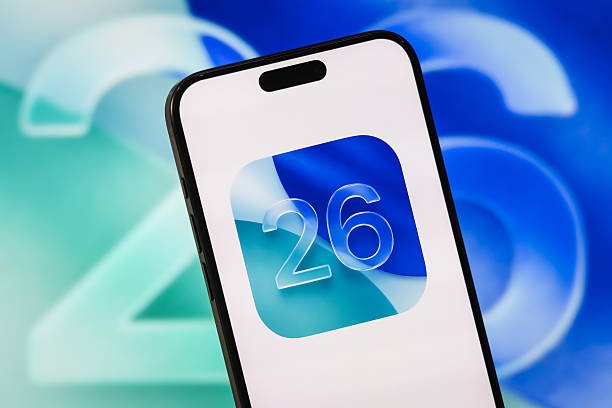
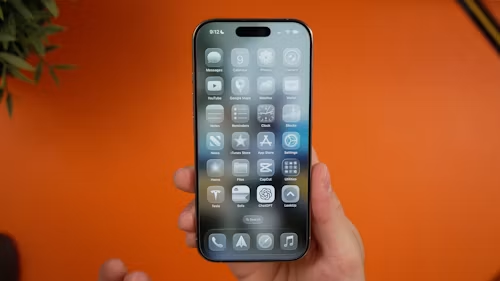
Liquid Glass is a translucent, dynamic material that Apple introduced across iOS 26, iPadOS 26, macOS Tahoe, watchOS 26, and tvOS 26, unveiled at WWDC in June 2025, and rolled out that September. In Apple’s own words, it’s a material that reflects and refracts its surroundings, similar to actual glass, while dynamically shifting to keep focus on your content. In practice, this means buttons, tab bars, sidebars, the lock screen, the control center, and app icons all take on a semi-transparent, layered look that responds to light, motion, and whatever’s behind it, rather than sitting as flat, solid shapes the way iOS interfaces have looked for the past decade.
Where You’ll Actually See It
Liquid glass touches nearly every part of the system, but a few areas make the change most obvious:
- Lock Screen and Home Screen: the clock automatically resizes and repositions itself to fit around your wallpaper, and Control Center buttons take on a customisable glass finish.
- App icons and widgets: icons now have a multi-layered, stacked-glass appearance, with a new “Clear” option that makes them fully transparent so your wallpaper shows through.
- Navigation and tab bars: menus and toolbars appear as translucent panels floating above your content rather than solid bars, bending and reacting to whatever’s scrolling behind them.
- Notifications and Control Center: rendered in a more matte version of the same glass material, distinct enough to stay readable while still fitting the new aesthetic.
Why Apple Made This Change
Apple has positioned Liquid Glass as more than a cosmetic refresh—the goal, according to the company, is a more expressive and “delightful” interface that keeps the focus on your actual content rather than the chrome around it, while staying instantly familiar to anyone who’s used an iPhone before. It’s also meant to unify the look and feel across every Apple device, from the iPhone in your pocket to the Mac on your desk, so switching between them feels more visually consistent than it has in past years.
The Honest Take: Not Everyone Loves It
Liquid Glass has been genuinely divisive, and it’s worth knowing that upfront rather than assuming universal praise. Usability researchers at the Nielsen Norman Group have specifically criticized the design for obscuring content rather than highlighting it, pointing to translucent controls that become hard to read over busy backgrounds, more crowded tab bars, and animated buttons that can feel jittery rather than polished. If you’ve found certain menus or buttons harder to read since updating, you’re not alone—this is a documented criticism of the initial rollout, not just a personal preference issue.
Apple has responded to at least some of this feedback. iOS 26.2, released in December 2025, introduced more customization options for Liquid Glass specifically, letting users dial back the effect rather than being stuck with one fixed intensity.
How to Customize or Tone Down Liquid Glass
If you like the aesthetic but want more control over how strong the effect is, or you’ve found it genuinely gets in the way of reading your screen, you have a few options:
- Adjust icon transparency: touch and hold your Home Screen, tap Edit, then Customise, and you can toggle the Clear option for app icons—available in both Light and Dark mode—to make icons fully transparent so your wallpaper shows through more.
- Reduce transparency system-wide: go to Settings → Accessibility → Display & Text Size, and turn on Reduce Transparency. This meaningfully cuts back the see-through, glassy effect across the system for anyone who finds it visually distracting or harder to read.
- Reduce motion: if the fluid, reactive animations feel like too much, Settings → Accessibility → Motion → Reduce Motion tones down the movement and bounce built into the Liquid Glass interactions, without necessarily removing the visual style entirely.
These accessibility settings existed before Liquid Glass, but they’ve become considerably more relevant for anyone who wants a calmer, more legible interface without giving up iOS 26 entirely.
Does It Affect Performance or Battery Life?
For most current iPhones, Liquid Glass’s real-time light-bending and reflection effects are handled by the same on-device graphics processing that already renders everything else on your screen, and Apple hasn’t flagged any specific battery trade-off tied to the design itself. If you’re on an older, supported device and notice your phone feeling less responsive after updating, turning on Reduce Motion and Reduce Transparency (mentioned above) can lighten the system’s rendering load somewhat, in addition to their visual benefits.
Is Liquid Glass Here to Stay?
Given that Apple has extended this design language across every one of its operating systems simultaneously, rather than testing it on iOS alone, it’s clearly intended as a long-term direction rather than a one-off experiment. Expect Apple to keep refining it—as it already has with iOS 26. 2’s added customisation—rather than walking it back, so it’s worth taking a few minutes to set it up in a way that actually works for you rather than living with the default if it’s not to your taste.
Bottom Line
Liquid Glass is a genuine design shift, not a minor visual tweak—and how much you’ll like it depends a lot on your own taste and how much translucency you find readable versus distracting. The good news is that Apple has built-in real customization options, so if the full effect isn’t for you, a couple of minutes in Accessibility settings can noticeably calm it down without losing iOS 26’s other features. For more on what else changed under the hood in iOS 26, see our breakdown of iOS 26.6’s security updates and background changes.