How to Free Up Storage on Your iPhone or Android Without Deleting Photos
“Storage Almost Full” is one of the most universally annoying phone notifications, and the instinct to start deleting photos is usually the wrong first move — photos are often not even the biggest culprit, and there are several ways to reclaim space without losing a single memory. Here’s where your storage is actually going and how to free up storage on your phone the smart way.
Check What’s Actually Using Your Storage First
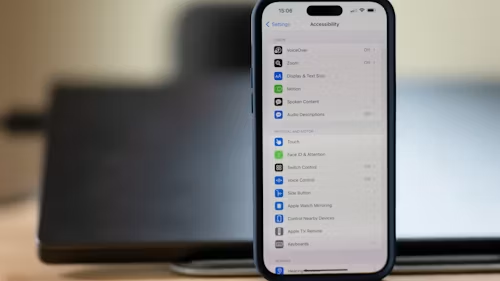
Before deleting anything, see where your space is actually going. On iPhone, go to Settings → General → iPhone Storage; on Android, go to Settings → Storage. Both will show a breakdown by app and category, and the results often surprise people — apps, cached data, and downloaded media frequently take up more space than photos do.
Fix These Before Touching Your Photos
Clear app cache and offline media. Streaming apps (Spotify, YouTube, Netflix) and social apps often accumulate large amounts of cached or downloaded content over time. On Android, you can clear an individual app’s cache directly from Settings → Storage → [App name] → Clear Cache. On iPhone, this varies by app, but many streaming apps have a “Clear Downloads” or “Free Up Space” option in their own settings menu.
Delete apps you no longer use — but check “Documents & Data” first. Some apps leave behind significant cached data even after you think you’ve cleaned them up. Both the iPhone’s storage screen and Android’s equivalent show exactly how much space each installed app is consuming, including data beyond just the app itself.
Offload unused apps automatically (iPhone). Go to Settings → General → iPhone Storage and enable Offload Unused Apps. This removes the app itself while keeping its data, so if you reinstall it later, your information is still there — a genuinely useful middle ground between keeping every app installed and losing your data entirely.
Clear your browser cache and downloads folder. Both Safari and Chrome accumulate cached website data over time, and downloaded files (PDFs and images saved from the web) pile up in a downloads folder that’s easy to forget about entirely.
Delete old voice memos, downloaded podcasts, and offline maps. These are commonly overlooked because they don’t live in an obvious “storage hog” location, but downloaded podcast episodes and offline map regions in particular can quietly consume several gigabytes.
Check for duplicate or large video files. Video takes up dramatically more space than photos — a few minutes of 4K video can equal hundreds of photos in file size. Both iPhone and Android’s storage breakdown screens will show your largest individual files, which is often where the real space is hiding.
How to Handle Photos Without Actually Deleting Them
Turn on cloud photo syncing with “optimise storage” enabled, rather than turning it off entirely. On iPhone, Settings → Photos → Optimise iPhone Storage keeps full-resolution originals in iCloud while storing smaller, space-saving versions on your device, downloading the full version only when you actually open a photo. Android offers a similar option through Google Photos’ storage saver settings. This is the single most effective way to keep every photo accessible while dramatically reducing your device’s actual local storage use.
Review and delete truly redundant photos, not your whole library. Burst-mode shots (where you have 15 near-identical photos from one moment), screenshots you no longer need, and duplicate images from AirDrop or messaging are the safest, least emotionally costly things to clean up — you’re not sacrificing memories, just clutter.
Back up before you delete anything, even redundant items. If you’re not on a cloud photo plan, connect your phone to a computer and copy your photo library over before removing anything locally, just as a safety net.
If You’re Still Running Low
Consider a cloud storage subscription. A relatively small monthly fee for expanded cloud storage (through iCloud, Google One, or another provider) is often far cheaper than upgrading to a phone with more built-in storage and solves the problem going forward rather than just today.
On Android specifically, check for a microSD card slot. Not all Android phones support expandable storage anymore, but on models that do, a microSD card is a straightforward, affordable way to add substantial extra space, particularly for photos, videos, and offline media.
Bottom Line
Photos are rarely the real reason your phone is out of storage — app caches, downloaded media, and forgotten files are usually the bigger culprits, and clearing those first often solves the problem without touching a single photo. When you do need to deal with your photo library, turning on storage optimisation for cloud syncing keeps everything accessible while freeing up real space on your device, which beats permanently deleting anything.