Share Your Phone’s Internet Connection the right way
Quick answer: Turn on Personal Hotspot on iPhone or Mobile Hotspot on Android, set a strong password, then select your phone’s network from the other device’s Wi-Fi menu.
A phone hotspot can connect a laptop, tablet, or another device when Wi-Fi is unavailable. It uses your mobile data, so check your plan and monitor battery life before using it for a long period.
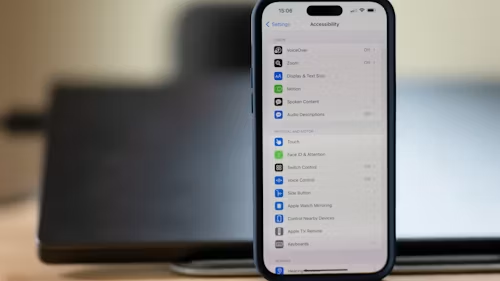
How to turn on a hotspot on an iPhone
- Open Settings.
- Tap Personal Hotspot. On some versions, open Cellular first.
- Turn on Allow Others to Join.
- Check the Wi-Fi password shown on the screen.
- Leave this screen open while connecting the other device if necessary.
On the laptop or tablet, open the Wi-Fi list, select the iPhone’s name, enter the password, and connect.
How to turn on a hotspot on Android
- Open Settings.
- Search for hotspot or mobile hotspot.
- Open the hotspot settings.
- Turn on Wi-Fi hotspot or mobile hotspot.
- Check or change the network name and password.
On the other device, select the hotspot network and enter the password. Android menu names vary by manufacturer.
Use a strong hotspot password.
Do not leave the hotspot open without a password. Use a password that is difficult for nearby people to guess and avoid sharing it publicly.
Turn the hotspot off when you finish. Some phones automatically disable it after a period of inactivity.
Other ways to share your connection
Depending on your phone and computer, you may also be able to use:
- USB tethering
- Bluetooth tethering
- Instant hotspot between devices using the same account
USB tethering can provide a stable connection and may charge the phone while it is connected. It still uses mobile data.
Why is the hotspot slow?
Try these fixes:
- Move to an area with stronger mobile coverage.
- Disconnect devices you are not using.
- Keep the phone near the connected device.
- Turn off VPNs temporarily for testing.
- Restart mobile data and the hotspot.
- Check whether your plan limits hotspot speed.
A hotspot cannot be faster than the available mobile connection, and network congestion may reduce performance.
Protect your data and battery.
Streaming video, downloading updates, and video calls can use a large amount of data. Turn off automatic updates and cloud syncing on the connected device if you need to conserve data.
Keep the phone cool and connect it to power for long sessions. Avoid covering the phone while the hotspot is active.
Final verdict
A phone hotspot is a useful emergency connection, but it is not a replacement for reliable home broadband. Use a strong password, monitor your data, and turn the hotspot off when you finish.